Leadership Conference Mobile App | ||
We are so excited to welcome you to The WICT Network’s Leadership Conference! Please review the instructions below to access the conference through The WICT Network app. | ||
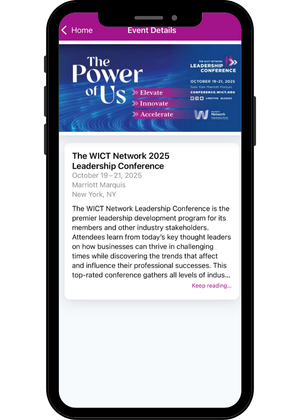 | Through the app, you’ll be able to:
And much more! | |
Mobile App Access Step 1: Download the App Step 2: Access the Leadership Conference 1. Open the app and navigate to the Events tab. 2. Select “The WICT Network 2025 Leadership Conference.” 3. The first time you access the event, you’ll be prompted to set your participation preferences. Customize these to your liking, then tap Continue to enter the conference section of the app.  | ||
Create Your Personal Schedule To begin building your schedule, tap on Agenda in the menu to preview the conference sessions, then select your preferences by tapping the schedule icon to the left of each session. Your personalized schedule appears when you tap the Selected button at the top of the screen. 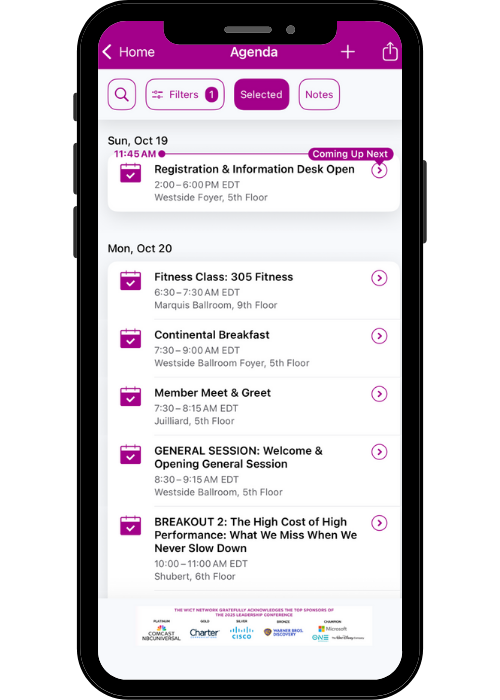 | ||
Update Your Profile Information Your profile details appear in the directory, timeline and direct messaging features of the app.
1. From the menu, tap your name. If you do not see your name, check the tips for Create an Account or Log Into Your Account. 2. Tap on Profile Information. 3. From your profile page, tap on the information you wish to edit or add. 4. Edit your information, then tap on the checkmark (Android) or Done button (iOS) when you’re finished. | ||
Questions?
Visit the RD Mobile Support page for tips on getting started or troubleshooting issues, or contact The WICT Network at membership@wict.org.